
Advanced Git Commands Every Developer Should Know (2026)
Advanced git commands for when things break: bisect, reflog, rebase -i, stash --patch, blame -w -C, and 15 more. Each with a real scenario and honest caveats.

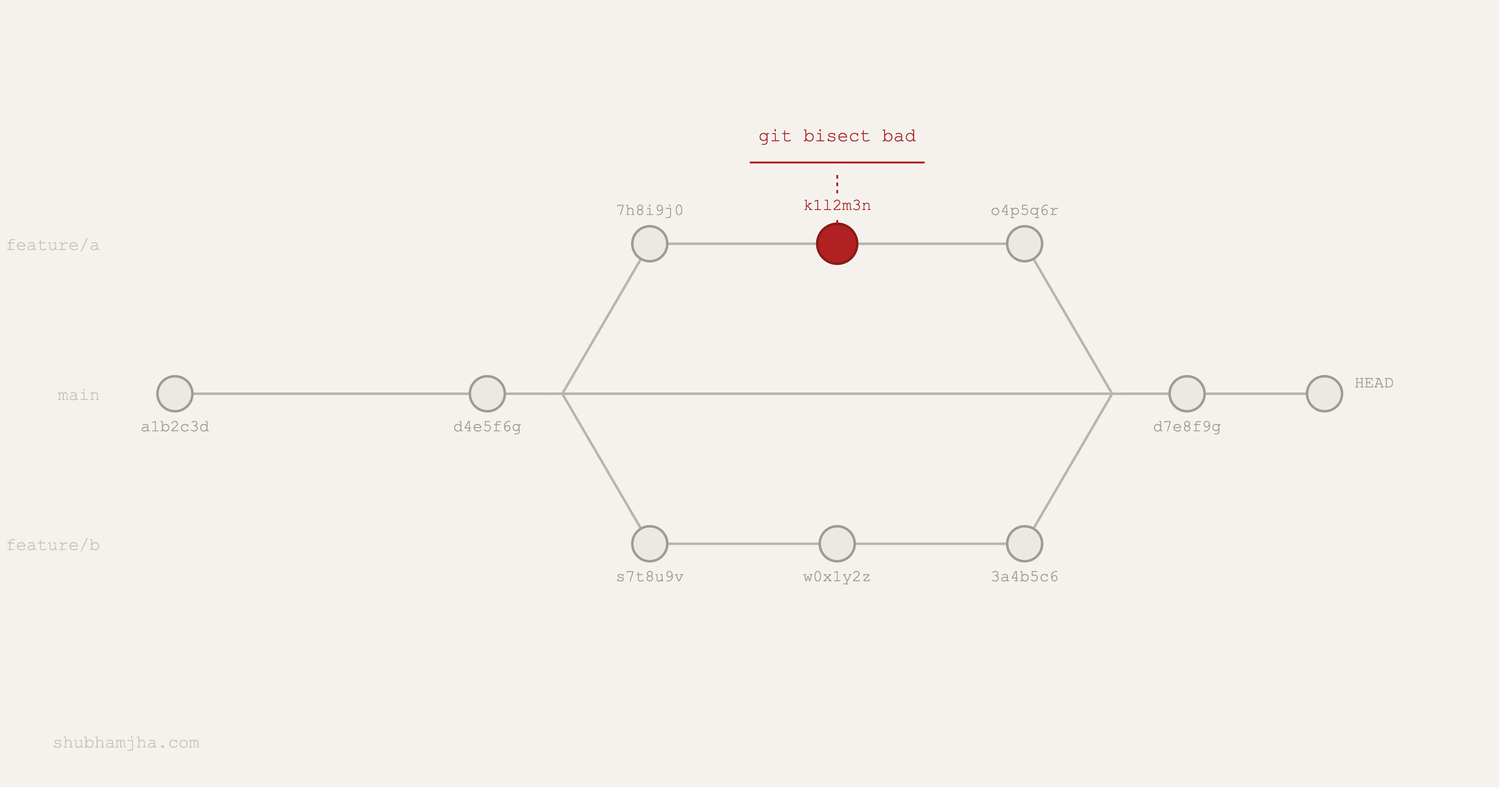
We were three days from shipping the promotions engine. The release had been messy — a UI overhaul on top of backend pricing changes, two teams rebasing against each other, commits stacking up faster than anyone was reviewing them. QA flagged it on a Thursday afternoon: a discount calculation returning the wrong value in a specific edge case. Not always. Not on every order type. Just wrong enough to block the release.
The branch had over 200 commits. Nobody had touched the discount logic recently, or so we thought. No obvious place to start.
I ran git bisect. Forty minutes later, it had isolated the exact commit. A "cleanup" — a variable rename that silently broke an import three files away, slipping through in the rebase churn. A day's worth of git log archaeology. Under an hour.
Most engineers know git commit and git push. The advanced git commands, the ones that matter when things go wrong, get skipped. This is the reference I wish had existed.
TL;DR —
git bisectfinds bugs faster than any other tool when the problem is "worked before, broken now."git reflogis your safety net for anything that looks irreversible.git rebase -irewrites local history cleanly before you share it.git blame -w -Ctraces code to its actual origin, not the last person who reformatted the file.git stash --patchgives you surgical control over what gets stashed.git push --force-with-leaseis the only acceptable force push.git log -Sfinds when a specific string appeared or disappeared in your codebase. These are the commands that separate "knows git" from "uses git well."
Table of Contents
- Quick Reference
- Archaeology — Understanding What Happened
- Escape Hatches — Undoing Things Safely
- Surgical Precision — Working on Changes
- Housekeeping — Keeping Things Clean
Quick Reference
A one-liner for every command in this post. Bookmark this table.
| Command | What it does |
|---|---|
git bisect |
Binary-search commit history to find which commit broke something |
git log --oneline --graph |
Visual branch topology — one commit per line |
git blame -w -C |
Who changed each line, ignoring whitespace and tracking moves/copies |
git log -S "string" |
Find commits where a specific string was added or removed |
git show <ref> |
Inspect any commit, tag, or blob in full |
git grep "pattern" |
Search tracked file contents — faster than grep in large repos |
git reflog |
Every recent HEAD position — your undo history for git operations |
git restore <file> |
Discard working tree changes without touching the index |
git revert <hash> |
Create a new commit that undoes a prior commit — safe on shared branches |
git reset --soft/--mixed/--hard |
Move HEAD backward — destructive on shared branches |
git push --force-with-lease |
Force push that refuses if remote has diverged since your last fetch |
git stash --patch |
Interactively choose which hunks to stash |
git stash list/pop/apply |
Manage the stash stack: list entries, pop (apply + drop), or apply (keep) |
git rebase -i HEAD~N |
Interactively squash, reorder, reword, or drop the last N commits |
git commit --fixup <hash> |
Create a fixup commit targeting a specific prior commit |
git rebase --autosquash |
Auto-collapse fixup commits into their targets during rebase |
git diff --word-diff |
Show changed words within lines, not whole-line diffs |
git switch <branch> |
Modern, unambiguous replacement for git checkout <branch> |
git clean -fd |
Delete all untracked files and directories |
git fetch --prune |
Fetch and remove remote-tracking refs for deleted remote branches |
Archaeology — Understanding What Happened
git bisect
git bisect runs a binary search through commit history. You mark a known-good state and the current broken state. Git checks out the midpoint. You test, report good or bad, and Git halves the range. On 1,000 commits, you find the offending commit in roughly 10 steps.
git bisect start
git bisect bad                    # current HEAD is broken
git bisect good v2.4.1            # last known-good tag or commit hash

# Git checks out the midpoint commit.
# Test manually or run your suite, then report:
git bisect good                   # midpoint is fine — bug is in the later half
git bisect bad                    # midpoint is broken — bug is in the earlier half

# Repeat until git prints:
# "abc1234 is the first bad commit"

git bisect reset                  # return to HEAD when done
For a repeatable regression, automate it entirely:
git bisect run npm test -- --testPathPattern="discount"
Git uses the exit code (0 = good, non-zero = bad) to navigate without your input. This is the fastest path when you have a fast, reliable test for the specific regression.
When not to use it: Bisect assumes a single commit introduced the bug and it's been present ever since. That assumption breaks fast: intermittent failures, environment-dependent behavior, or two unrelated commits combining to cause the problem will all send bisect to the wrong place. Build environment consistency matters more than people realize, too. Differing Node versions, missing migrations, changed env vars can all make a good commit look broken.
git log -S — The Pickaxe
git log -S "string" finds commits where the count of a specific string in the codebase changed, meaning it was added or removed, not just moved around. This is called the pickaxe search.
git log -S "calculateDiscount" --oneline
# Every commit where calculateDiscount was introduced or deleted

git log -S "API_KEY" --all --oneline
# Search across all branches — useful for credential archaeology
Use git log -G "regex" when you need regex matching instead of a literal string. The difference: -S matches commits where the string count changes; -G matches commits where any line touching the pattern changed.
When to reach for it: You know a function, constant, or config key was renamed or deleted and want to find exactly when and by whom. I also reach for it in security audits, when I need to find when a hardcoded secret or unsafe pattern first appeared.
git blame -w -C
Plain git blame is often wrong. If someone reformatted the file or moved code from another file, git blame points to the reformatter, not the engineer who wrote the logic.
git blame -w -C path/to/file.ts
-w ignores whitespace-only changes. -C detects lines copied or moved from another file in the same commit. Add a second -C to search across all commits, not just the one that last touched the file:
git blame -w -C -C path/to/file.ts
With two -C flags, a line gets traced back to where it actually came from, even after the file has been restructured multiple times.
When not to use it: Three -C flags (-C -C -C) search even harder but can be very slow on repos with long histories. Two flags covers almost every real case.
git log --oneline --graph
git log --oneline --graph --decorate --all
Prints a compact ASCII branch graph, one line per commit, with branch and tag labels. I use it most before a rebase, when I need to see where branches diverged and what the merge topology actually looks like.
Drop --all if you only care about the current branch.
git show
git show abc1234                # commit diff and message
git show HEAD~3                 # three commits back
git show HEAD:src/api.ts        # file contents at a specific commit
git show v2.4.1:package.json    # file contents at a specific tag
The third and fourth forms are the most useful. You can read any file at any point in history without checking out the full commit.
git grep
git grep "TODO" -- "*.ts"
git grep -n "useEffect" src/
Searches tracked file contents. Faster than grep -r in large repos because it only searches files git knows about: no node_modules, no build artifacts, no .git internals. -n adds line numbers.
Escape Hatches — Undoing Things Safely
git reflog
git reflog records every HEAD position from recent history: every commit, reset, rebase, and checkout. It's local-only and not pushed to remotes. Entries expire after 90 days by default.
git reflog
# HEAD@{0}: rebase -i (finish): returning to refs/heads/feature/auth
# HEAD@{1}: rebase -i (pick): add JWT validation
# HEAD@{2}: rebase -i (pick): update auth middleware
# HEAD@{3}: checkout: moving from main to feature/auth
# HEAD@{4}: reset: moving to HEAD~3      ← the operation you regret
If you ran git reset --hard and discarded commits you needed:
git reflog                                # find the hash before the reset
git checkout -b recovery abc1234          # create a branch at that state
If you deleted a branch before merging it:
git reflog | grep "branch-name"
git branch restore-branch abc1234
When reflog won't help: If the entry has expired (90+ days), or if you never committed the work. Changes discarded by git checkout -- . or git clean have no git history and are not recoverable through reflog.
git revert vs git reset
These two get confused constantly. They do different things.
git revert <hash> creates a new commit that inverts the changes from the specified commit. The original commit stays in history. Safe on any branch, including shared ones.
git revert abc1234              # creates a new "Revert..." commit
git revert abc1234..def5678     # revert a range of commits
git revert --no-commit abc1234  # apply the inverse without committing yet
git reset moves HEAD to a different commit, rewriting history from that point. Three modes:
git reset --soft HEAD~1         # undo the commit, keep changes staged
git reset --mixed HEAD~1        # undo the commit, unstage changes (default)
git reset --hard HEAD~1         # undo the commit, discard all changes — destructive
The rule: revert for public history, reset for local cleanup. If a commit has been pushed to a shared remote and pulled by a teammate, running git reset creates diverged history that requires a painful reconciliation. git revert adds a commit and never rewrites history. It's always safe.
git push --force-with-lease
After a git rebase -i, your local history has diverged from the remote's. You need to force push. But git push --force on a shared branch silently overwrites any commits teammates pushed since your last fetch.
git push --force-with-lease origin feature/auth
--force-with-lease checks whether the remote branch matches your local remote-tracking ref (origin/feature/auth). If someone pushed since you last fetched, it refuses:
error: failed to push some refs to 'origin'
hint: Updates were rejected because the tip of your current branch is behind its remote counterpart.
Then:
git fetch origin feature/auth     # pull their changes
git log origin/feature/auth       # review what they pushed
# rebase or merge, then push again
git push --force-with-lease origin feature/auth
Always use --force-with-lease instead of --force. Skipping that check isn't worth overwriting someone's work.
git restore
git restore src/api.ts                        # discard working tree changes
git restore --staged src/api.ts               # unstage without discarding changes
git restore --source HEAD~2 src/api.ts        # restore a file to an earlier state
git restore replaced the overloaded git checkout -- <file> in Git 2.23. It does one thing, which makes it harder to accidentally target a branch name instead of a file path. Use --staged to unstage a file while keeping your edits. Use --source to pull a specific version of a file from history without checking out the entire commit.
Surgical Precision — Working on Changes
git rebase -i
Interactive rebase lets you rewrite local commit history before sharing it. The most common use: collapsing work-in-progress commits into clean, logical units.
git rebase -i HEAD~5        # operate on the last 5 commits
git rebase -i main          # operate on all commits ahead of main
This opens an editor listing your commits, each prefixed with an action:
pick a1b2c3 add JWT validation middleware
pick d4e5f6 wip: JWT tests
pick g7h8i9 JWT tests — finished
pick j0k1l2 fix typo in auth error message
pick m3n4o5 update auth docs
Change the action keywords to control what happens:
squash— merge into the previous commit, combining both messagesfixup— merge into the previous commit, discard this commit's messagereword— edit the commit message without changing the contentdrop— remove the commit entirelyedit— pause at this commit to amend content before continuing
pick a1b2c3 add JWT validation middleware
squash d4e5f6 wip: JWT tests
fixup g7h8i9 JWT tests — finished
fixup j0k1l2 fix typo in auth error message
reword m3n4o5 update auth docs
Save and close. Git replays the commits in order with the specified actions.
When not to use it: Never rebase commits that have been pushed to a shared branch and pulled by others. Rebase rewrites commit hashes. Each rebased commit is a new object with a new hash, so anyone who already pulled those commits now has a diverged history. Rebase only local, unpushed commits, or commits on a feature branch where you're working alone.
git commit --fixup + git rebase --autosquash
I use this pairing on every long-running feature branch. It keeps the commit graph tidy without a big squash at the end.
Say you have three commits and discover a bug in the first:
git log --oneline
# abc1234 add authentication
# def5678 add user profile
# ghi9012 add settings page
Fix the bug and create a fixup commit:
git add -p                        # stage only the relevant fix
git commit --fixup abc1234
# Git creates: "fixup! add authentication"
Then collapse it:
git rebase -i --autosquash HEAD~4
Git automatically moves the fixup commit immediately after abc1234 and marks it fixup. Just save and close. The result looks like you wrote the fix in the original commit.
It works best when you're making incremental corrections to multiple earlier commits over time. Fixup commits track what you changed during development; autosquash cleans them out before you push.
git stash --patch
git stash --patch (shorthand: git stash -p) drops into an interactive hunk selection loop instead of stashing all working tree changes:
git stash --patch
For each changed hunk, git asks:
Stash this hunk [y,n,q,a,d,s,?]?
y— stash this hunkn— leave it in the working trees— split the hunk into smaller piecesa— stash this hunk and all remainingq— stop here, stash nothing further
Only the selected hunks go into the stash. The rest stays untouched in your working tree.
It's most useful when one file has two completely different things going on: finished work you want to keep, and experimental work you want to set aside. Without --patch, you'd have to stash everything, unstash, and manually undo the parts you wanted. That's the wrong direction.
When plain git stash is fine: If all your changes belong together and you just need to context-switch quickly, the interactive mode is unnecessary overhead.
git stash list / pop / apply
git stash list
# stash@{0}: WIP on feature/auth: abc1234 add JWT validation
# stash@{1}: WIP on main: def5678 cleanup

git stash pop               # apply stash@{0} and remove it from the list
git stash apply             # apply stash@{0} but keep it in the list
git stash pop stash@{1}     # apply a specific stash entry by index
git stash drop stash@{1}    # remove a specific entry without applying
The only distinction that matters here is pop vs apply. pop removes the entry after applying. Use it when you're confident the stash applied cleanly. apply keeps it in the list. Use that when you're not sure and want a fallback if conflicts come up.
git diff --word-diff
git diff --word-diff
Instead of showing entire changed lines, it highlights the specific changed words within each line. Removed words appear in [-brackets-], added words in {+braces+}.
git diff --word-diff --unified=0 # no context lines, only changed lines
Most useful for prose-heavy files, config, or any diff where the change is a word substitution inside a longer line.
Housekeeping — Keeping Things Clean
These three commands don't fit neatly into debugging or history rewriting, but they eliminate persistent friction in daily git use: stale remote refs, accidental git checkout ambiguity, and untracked file clutter.
git switch
git checkout switches branches, checks out files, creates branches, and restores the working tree. git switch just switches branches. That's all you want most of the time.
git switch feature/auth         # switch to an existing branch
git switch -c new-branch        # create and switch in one step
git switch -                    # switch to the previous branch
Keep using git checkout for file-level operations (git checkout HEAD~2 -- path/to/file). Use git switch for anything branch-related.
git clean -fd
git clean -fd
Deletes all untracked files (-f) and directories (-d). Use before a clean build, after running code generators that created files you didn't intend to commit, or when the working tree has accumulated test output and temp files.
Always run the dry run first:
git clean -nfd      # preview what would be deleted
git clean -fd       # execute
This is destructive and cannot be recovered via reflog. Untracked files have no git history. Run the dry run first.
git fetch --prune
git fetch --prune
Fetches from the remote and removes local remote-tracking refs for branches that no longer exist on the remote. When a teammate merges and deletes their feature branch, your local origin/feature/their-work ref lingers until you prune.
git config --global fetch.prune true
Setting this globally means pruning happens on every fetch automatically. It won't touch your local branches. It only removes stale remote-tracking refs.
Git confidence isn't about never breaking things. It's knowing that even when you do, you can find the offending commit in 40 minutes instead of a day, recover work you thought was gone, and leave the branch readable enough that the next engineer doesn't have to decode what happened.
These commands are in every git installation. They just go unused. Now you know when to reach for them.
If the codebases you're working in are Next.js projects, the same depth-over-breadth approach applies to React patterns — React hooks production patterns worth knowing covers the equivalent set of underused React primitives.
Frequently Asked Questions
What are the most useful advanced git commands for developers?⌄
The commands that consistently save time for mid-to-senior engineers: git bisect for binary-search debugging through commit history, git reflog for recovering anything that looks lost, git rebase -i for cleaning up commit history before pushing, git stash --patch for staging specific hunks, and git blame -w -C for tracing code origin through renames and copies. These go beyond the basics and handle the situations where standard git commands fall short.
How does git bisect work?⌄
git bisect runs a binary search through your commit history to find the commit that introduced a bug. You start it with git bisect start, mark the current broken state as bad with git bisect bad, and mark a known-good commit as good with git bisect good <hash>. Git checks out the midpoint commit. You test and mark it good or bad. Git narrows the range and repeats until it isolates the exact offending commit. On a range of 1,000 commits, bisect finds the culprit in roughly 10 steps.
What is git reflog and when should I use it?⌄
git reflog is a local log of every time HEAD moves — commits, resets, rebases, checkouts. It's your safety net when you've done something that looks irreversible: a git reset --hard that discarded commits, a rebase that rewrote history you needed, a branch you deleted before merging. Run git reflog to see recent HEAD positions with their hashes, then git checkout <hash> or git branch recover-branch <hash> to get back to any of them. Reflog entries expire after 90 days by default.
What is the difference between git revert and git reset?⌄
git revert creates a new commit that undoes the changes from a specific commit — it's safe on shared branches because it adds to history rather than rewriting it. git reset moves HEAD (and optionally the index and working tree) backward — it rewrites history and should only be used on commits that haven't been pushed to a shared remote. The rule: revert for public history, reset for local cleanup.
How does git rebase -i work?⌄
git rebase -i (interactive rebase) opens an editor with a list of commits in a range, each prefixed with an action keyword. pick keeps the commit as-is. squash merges it into the previous commit, combining messages. fixup does the same but discards the commit message. reword lets you change the message without touching the content. drop removes the commit entirely. You reorder lines to reorder commits. When you save and close, git replays the commits in the new order with the specified actions applied.
What does git push --force-with-lease do?⌄
git push --force-with-lease is a safer alternative to git push --force. It refuses to force-push if the remote branch has commits that aren't in your local remote-tracking ref — meaning someone else pushed since you last fetched. Regular --force would silently overwrite their work. --force-with-lease refuses and tells you to fetch first. Always use --force-with-lease instead of --force when you need to overwrite remote history after a rebase.
How do I use git stash --patch?⌄
git stash --patch (or git stash -p) drops into an interactive hunk selection mode. For each changed hunk in your working tree, it asks whether to stash it. You answer y (yes), n (no), s (split into smaller hunks), or a (stash this and all remaining). Only the hunks you select get stashed. The rest remain in your working tree. This is useful when you have mixed changes — some finished, some experimental — and need to stash only the experimental part while keeping the finished work in place.
Published: Sun Jun 28 2026